

AI Video Editor Opus Clip AI Review: Is It Worth It?
An in-depth review of Opus Clip AI video editor. Learn how it turns long videos into short clips, pricing, accuracy, user ratings, and alternatives.

Opus Clip can save steps if you regularly turn long-form material into social media posts, but the fit depends on your volume and editing needs. A creator with weekly interviews may welcome a faster way to find usable moments, while someone needing precise cuts may want more control. The key tradeoff is speed against hands-on editing.
This is a focused video repurposing product, not a guarantee of reach or a complete marketing system. Virality Score is Opus Clip’s 1-100 estimate of a clip’s potential social engagement, not a guarantee of views. Your decision should hinge on how much content you process, how closely you need to shape each clip, and whether the workflow fits your publishing routine.
For creators and marketers, the useful question is not whether AI can make shorts. It is whether the output saves enough time to justify another tool in your workflow. This review looks at how it works, what it costs, and who is likely to benefit.
How Does the AI Video Editor Opus Clip AI Work?
A 45-minute podcast episode usually has several strong moments, but finding them can take longer than the recording itself. Opus Clip takes a long video file or link, looks for candidate sections, and turns them into vertical clips with captions and reframing. That automated scan is designed to reduce the time spent hunting through a timeline.
The core workflow runs from an imported video link or file to candidate clips, auto-captions, reframing, and an export or schedule step.
The software processes YouTube, Google Drive, or Zoom links, as well as uploaded files. From there, it transcribes the speech, identifies sections that might work as short posts, and assigns each clip a Virality Score.
Opus Clip finds candidate moments, reframes footage, and generates captions, but final review remains in your hands.
The system then reframes the footage for vertical viewing and generates captions. You can review the selections, adjust the in-and-out points, modify the text, and apply brand styles before exporting. The aim is to speed up the first pass, not to replace your editorial judgment.
Understanding that workflow helps you see which features do the heavy lifting and which ones add convenience around the edges.
Which Opus Clip Features Matter Most?
A two-hour conference panel needs different treatment than a solo commentary video. Opus Clip includes several capabilities for repurposing content, but a few core features drive most of the daily value. The main components focus on finding clips, reframing subjects, and adding readable captions.
| Feature | What it handles | Practical use |
|---|---|---|
| ClipAnything | Identifies moments across varied video genres | Surfaces candidate clips |
| ReframeAnything | Resizes and tracks moving subjects | Adapts framing for different platforms |
| Captions & AI editor | Creates editable captions and gives manual editing control | Supports review and brand consistency |
Clip selection and reframing
ClipAnything is designed to find usable moments across different kinds of content, including conversations, presentations, and product walk-throughs. It identifies candidates, but you still need to verify whether the moment works on its own.
ReframeAnything adjusts the aspect ratio and tracks active speakers to keep them centered in vertical video. A split-screen layout can also show both participants in a remote interview.
Captions, editing, and brand templates
The caption tool transcribes speech, adds on-screen text, and highlights keywords in color. You can edit the transcript directly to fix mistakes or tighten the wording.
Brand templates let you save fonts, colors, and logos for a consistent look. A Social Media Scheduler also lets you publish directly to platforms from the workspace.
Need quick, client-side video cropping or trimming?
Crop aspect ratios or trim clips privately without uploading files to third-party cloud servers.
How Much Does Opus Clip Cost?
If you publish two shorts a week, paying for hundreds of minutes may not make sense. Opus Clip prices by processing minutes rather than exports, so your monthly cost depends on how much source footage you feed into it. Your source volume is the main driver of plan value.
| Plan | Listed price | Processing allowance |
|---|---|---|
| Free | $0 | 60 minutes per month |
| Starter | $15 per month | 150 minutes per month |
| Pro | $29/mo ($14.50/mo billed annually) | 300 minutes per month |
Free access and the trial offer
The Free plan includes 60 processing minutes per month, which is enough to test a couple of shorter videos. Free exports may carry branding or watermarking depending on the tier conditions.
New users often receive a free trial of Pro features. It is a good way to test 1080p rendering and export speeds before paying.
Paid plans and processing limits
The Starter plan at $15/month offers 150 minutes, while the Pro plan offers 300 minutes for $29/month. Remember that processing minutes count source video duration, not finished clip length. Uploading a 60-minute video uses 60 minutes of your quota even if you only keep two 30-second clips.
How Good Are Opus Clip’s Clips and Captions?
A promising moment may still need a quick check for a clean opening and ending before it works as a short-form post. Opus Clip can surface useful sections and reduce time spent searching, but a candidate clip may start mid-thought or end before the speaker finishes. A good find is not automatically a finished edit.
What the AI gets right
When a long recording contains clear explanations, reactions, or stories, candidate selections can help you find those sections faster. The system also gives you a starting point for captions and layouts, which can reduce repetitive work across social media posts. That is most useful when you publish often and can accept a review pass.
The Virality Score can serve as an additional cue when comparing candidates, but it is not a measure of guaranteed performance. A lower score does not prove a clip will fail, and a higher one does not promise views. The context, audience, and final edit still matter.
What still needs a human check
AI may miss context or choose a cut that needs adjustment. A sharp edit can remove a speaker’s setup, make a joke confusing, or leave a sentence hanging. Check that each clip makes sense on its own, especially when the source video includes a longer discussion.
Captions can need correction when speech is unclear, names are unusual, or speakers talk over one another. If you import a video with on-screen subtitles already burned into the image, generated captions can overlap them. Review the text and screen layout before export.
What Are the Main Pros and Cons?
Opus Clip is most appealing when time spent finding moments is a bigger problem than fine-grained editing. For a busy creator, a workable first pass can be more useful than building every short from scratch. The tool saves discovery and setup work, but it does not make review optional.
✓ Advantages (Pros)
- •Faster discovery of candidate clips from long recordings.
- •Consistent starting point for animated captions and reframing.
- •Direct import from YouTube links, Zoom, and Google Drive.
- •Free tier allows real hands-on evaluation before subscribing.
✕ Limitations (Cons)
- •Processing minutes are consumed by full source duration, not exports.
- •Captions and speech hooks still require manual proofreading.
- •Limited utility if you produce original scripted ads from scratch.
- •Monthly plan credits expire after 60 days if unused.
What Do User Reviews Reveal?
Trustpilot showed Opus Clip at 4.0 out of 5 from 302 reviews as of March 2026, with a sharp split between five-star and one-star ratings. That divide suggests varied experiences rather than one consistent verdict. More than one in five reviews gave the service one star.
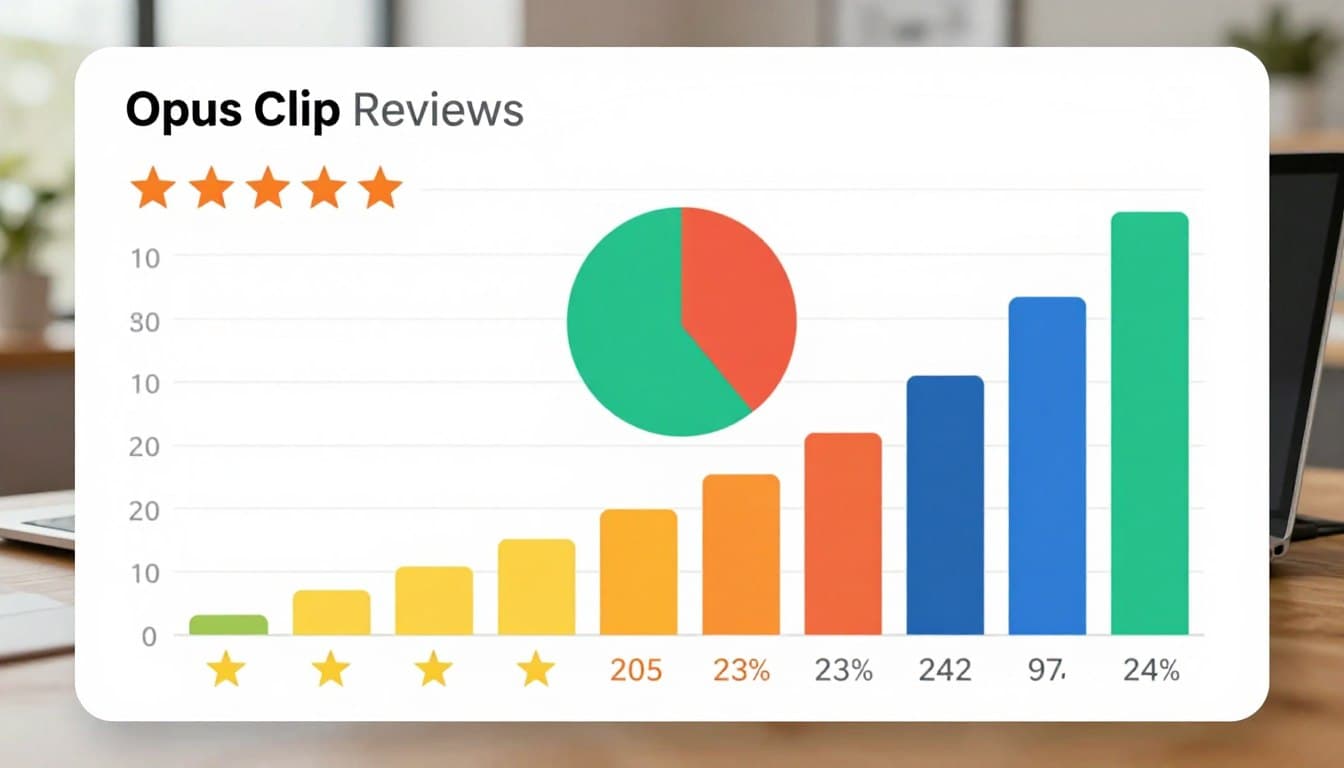
| Rating | Share of reviews |
|---|---|
| 5 stars | 61% |
| 4 stars | 8% |
| 3 stars | 5% |
| 2 stars | 4% |
| 1 star | 22% |
Positive reviews regularly highlight the time saved when turning podcasts and webinars into social clips. Creators mention that generating candidate moments and captions in a single pass lets them publish more consistently.
Critical feedback tends to focus on billing, credit consumption, and customer service. Several reviewers describe surprise at how quickly processing minutes disappear, especially when uploading long videos where only a small portion is used.
Who Is Opus Clip Best For?
A creator with regular podcasts or interviews who wants more short posts from each recording is a natural fit for Opus Clip. Existing footage is the starting point: the product helps turn long-form material into social clips. A steady supply of long videos makes the focused workflow more valuable.
Creators repurposing long-form material
Solo creators, marketers, and small teams can benefit when they already record content and need more shorts for social media. A weekly interview series, webinar, or video podcast can supply multiple opportunities for repurposing.
Teams with broader production needs
Teams needing multi-track editing, complex animation, or original footage creation will find the tool too specialized. If you do not already produce long videos, an automated clipping tool has less to work with.
What Alternatives Should You Compare It With?
A recorded podcast that needs short highlights calls for a different tool than a product campaign requiring original creative. The starting material is the key distinction: dedicated clippers extract moments from existing long videos, while full production tools help build original ads or scenes.

Dedicated clipping tools
Products such as Klap and Vizard focus on turning long videos into social clips. They compete closely on speaker tracking, caption styles, and platform templates. Comparing them comes down to caption accuracy and export control.
Full video-production tools
Broader editors such as InVideo, CapCut, or Descript offer wider toolsets. Descript works from text-based audio and video editing, while CapCut provides advanced effects and transitions. Choose based on whether you need quick clips or full timeline production.
What Should You Check Before Paying?
A 30-minute source video uses 30 processing minutes, even if you keep only one clip. Source duration, not the number of exports, drives that charge. Deleting an unsatisfactory clip does not refund the processing minutes used for its source video.
Processing is charged by the full source-video length, and deleting a clip does not return those minutes.
Before you choose a plan, check how minutes, saved projects, and publishing access work for your account. Monthly credits expire after 60 days, and annual credits expire after 13 months. If your recording cadence changes, plan your usage accordingly.
Check how processing minutes and projects are handled
Confirm what happens when you run out of minutes, and whether your preferred export resolution is included in your plan tier.
Test the export and publishing path
Verify how exports look on a real phone screen, check caption readability over busy footage, and confirm that direct publishing works smoothly with your accounts.
Conclusion
Opus Clip is worth trying if your main job is repurposing existing videos and speed matters more than deep production control. Regular creators can gain a useful way to turn long recordings into social posts. Teams building original campaigns or needing a broad marketing suite should compare other kinds of tools.
Use the free access to test a representative source video, then judge the usable clips, captions, and account workflow. That test will show whether the time saved fits your real publishing routine. Run one typical video through the free plan and review the output before paying for a subscription.