

Edit Video Online Free With Simple Editing Tools Today
A browser-based video editor can help you make a polished video without a complicated setup. Learn how to edit video online free, trim, crop, resize, and add audio.
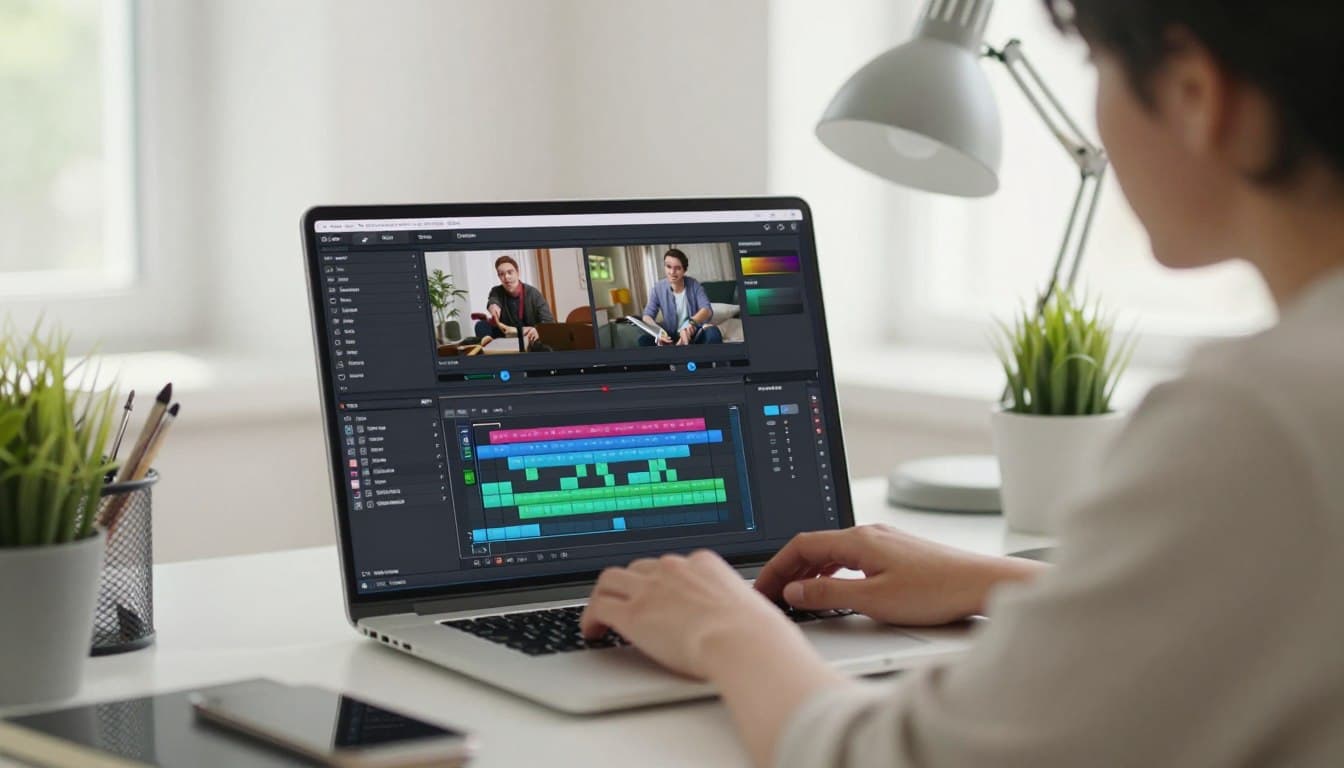
What Can You Do With Adobe Express for Free?
The Adobe Express free plan gives you a practical starting point for making and customizing videos. You can create as many videos as you like without a credit card, which makes it easier to test a small project before committing to a paid plan.
You can make as many videos as you like on the free plan, and your finished export has no watermark.
This free video editor can suit quick personal projects and straightforward business content. Templates help you start with a visual structure, while stock images can fill a gap when you do not have suitable photos of your own. Photo editing and effects offer more ways to tailor the look.
For example, you could use the free features for projects such as:
- Social posts that introduce a product or share an update.
- Promotional videos for a local service, event, or sale.
- Tutorials that explain one task in clear steps.
- Slideshows built around photos from a trip or gathering.
- Intros or outros that frame a longer video.
Think about the scope of your project as you compare plans. A simple slideshow may need only a template, photos, and a few edits. A more involved project might call for a feature or asset that is not included with the free plan.
The best way to judge the fit is to start with a real idea, not a long wish list. Choose one useful message, then decide whether the available features can help you present it. From there, you can begin a first project and shape it around your content.
How to Edit Video Online Free
Start with a short clip that needs an opening, a few supporting moments, and an ending. Adobe Express lets you select a video type or upload your own media, so you can begin with an existing direction or build from footage you already have.
A clear first draft comes from choosing the purpose, gathering the media, and arranging the main moments before polishing details. The timeline is the workspace where you arrange video, image, and audio clips in sequence or across layers.
Start With a New Project or a Template
Choose a video type that matches the idea, such as a short announcement or a photo-based story. If you want a faster visual starting point, select an Adobe Express template before adding project elements. A template gives you a structure to adapt, not a script you must follow.
Bring in the footage, photos, or other media that support the message. You do not need every file you have. A few relevant clips often make a clearer video than a crowded sequence of unrelated moments.
Arrange Your Media on the Timeline
Place the opening first, follow it with the supporting moments, and leave the ending for the final idea or action. As you arrange clips, look for a natural order: a person introduces the subject, shows what matters, then finishes with the result or next step.
Make an initial pass by putting the strongest material in a useful sequence. Preview the video from the beginning, and note where the story feels confusing or slow. The first version does not need to be perfect; it needs to show what belongs and what is still missing.
Use that preview to check whether each clip earns its place. If a moment repeats information or interrupts the sequence, mark it for revision. An organized first draft makes it easier to choose the right editing controls for the job.
Which Editing Controls Should You Use First?
If a clip begins with a long pause, trim that quiet stretch before adding decorative effects. Basic editing controls can improve the pace and composition of video without changing its message.
Start with the edit that fixes a clear problem, then use effects or transitions only when they help viewers follow the content. A quick cleanup often does more for quality than adding several visual treatments at once.
| Control | What changes | Useful for |
|---|---|---|
| Trim | Removes unwanted footage from the beginning or end | Tighten a clip |
| Split | Separates one clip into sections | Remove a middle mistake or edit one portion independently |
| Crop | Changes the visible frame | Reframe the subject or remove distracting edges |
Need instant, client-side video trimming?
Trim videos privately right inside your browser without uploading to any cloud server.
Trim clips when the beginning takes too long or the ending contains a false start. Split a clip when the useful moments sit on both sides of an unwanted section. Cropping can help place a face or object more clearly in the frame.
Adobe Express also includes merging clips, transitions, filters, speed adjustment, and reverse playback. These tools can change how a video feels, but each choice should have a reason. A transition may make a shift between scenes easier to follow, while a filter can help separate a new mood or moment.
Use effects sparingly when the video needs to explain something. A fast transition or strong filter can pull attention away from a speaker, product, or important detail. Preview the change beside the surrounding clips, and keep it only if it supports the message.
Once the footage feels clean and well-paced, focus on the visual details that make the edited video easier to understand.
How Can Text and Effects Make a Video Clearer?
A viewer watching a social video with the sound off still needs to know what it is about. Short, well-placed text can name the subject, explain a key point, or help viewers follow the action.
Use text and visual effects to clarify the content, not to compete with it. Adobe Express lets you overlay text, customize fonts, and add captions and titles to a video.
Add Titles and Captions
Write a title that tells viewers what they are about to see. Keep it concise enough to read at a glance, especially when the video plays on a small screen. Captions can make spoken information easier to follow, and they help viewers understand the subject when they watch without sound.
Choose fonts that are easy to read against the background. Strong contrast matters more than a decorative typeface, and a few words per line are easier to scan than a dense block. Preview captions over the actual footage, since a font that looks clear on a plain background may disappear over a busy scene.
Use Images and Animation With Purpose
Images and icons can reinforce a point when the footage alone does not show it clearly. A simple icon beside a key idea, for example, can help a viewer recognize a step or category. Choose graphics that fit the subject and leave enough room for the main content.
Adobe Express allows graphic, icon, text, and image elements to use animated effects. Animation can draw attention to one chosen detail, such as a new label appearing when the speaker mentions it. It does not need to be applied to every element.
Consider the background before placing text or an image. If the scene is already busy, a restrained overlay may be easier to read than a stack of graphics. Keep the main point visible, and remove any element that pulls the eye away from it.
As you refine the visuals, check that each effect has a clear job. A title can introduce the subject, a caption can carry spoken meaning, and an image can make an abstract point concrete. Clear visuals work best when the audio is equally intentional.
How Do You Add Music Without Letting It Take Over?
Lower the music bed until spoken instructions remain easy to hear. Background music can set a mood, but dialogue needs to stay in front whenever viewers rely on what someone says.
Choose audio that supports the video, then listen to the full sequence to catch anything that masks speech or feels out of place. Adobe Express lets you upload your own music or choose soundtracks and sound effects from Adobe Stock.
Choose Music or Sound Effects
Pick a music bed that fits the pace and subject. A calm track can sit behind a how-to video, while a lively one may suit an upbeat announcement. Keep the volume low enough that the soundtrack adds energy without becoming the main event.
Use sound effects to support a specific action, such as a soft click when a button appears. An effect added to every movement can make a simple video feel noisy. Choose sounds that belong in the scene, and place each one where the action happens.
Keep Dialogue and Background Sound Clear
Listen for distracting room noise, wind, or a steady hum behind speech. Adobe Express includes background-noise removal, which can help reduce sounds that compete with a speaker. Check the result after applying it, since a cleaner track should still sound natural.
If you record narration, leave a little space around the words so they do not feel crowded by music or effects. Listen once on headphones and once through ordinary speakers when possible. Different listening setups can reveal sounds that seemed less noticeable during editing.
Before sharing, run through this audio check:
- Dialogue clarity: spoken words are easy to understand.
- Music volume: the soundtrack stays behind important speech.
- Sound-effect timing: each effect matches the action.
- Playback from beginning to end: no sudden audio gaps or jumps.
Polishing sound helps the video feel complete. Once the audio holds together, prepare the picture for the screen where your audience will see it.
How Do You Resize Videos for Each Social Feed?
The same footage may need a vertical cut for a phone feed and a landscape cut for a widescreen destination. Adobe Express includes a one-click resize option for social content, including TikTok videos, Instagram Reels, and Facebook Stories.
Choose the aspect ratio for the intended placement, then check the subject and text inside the new frame. The aspect ratio is the shape of the video frame, and a change in shape can shift what remains visible.
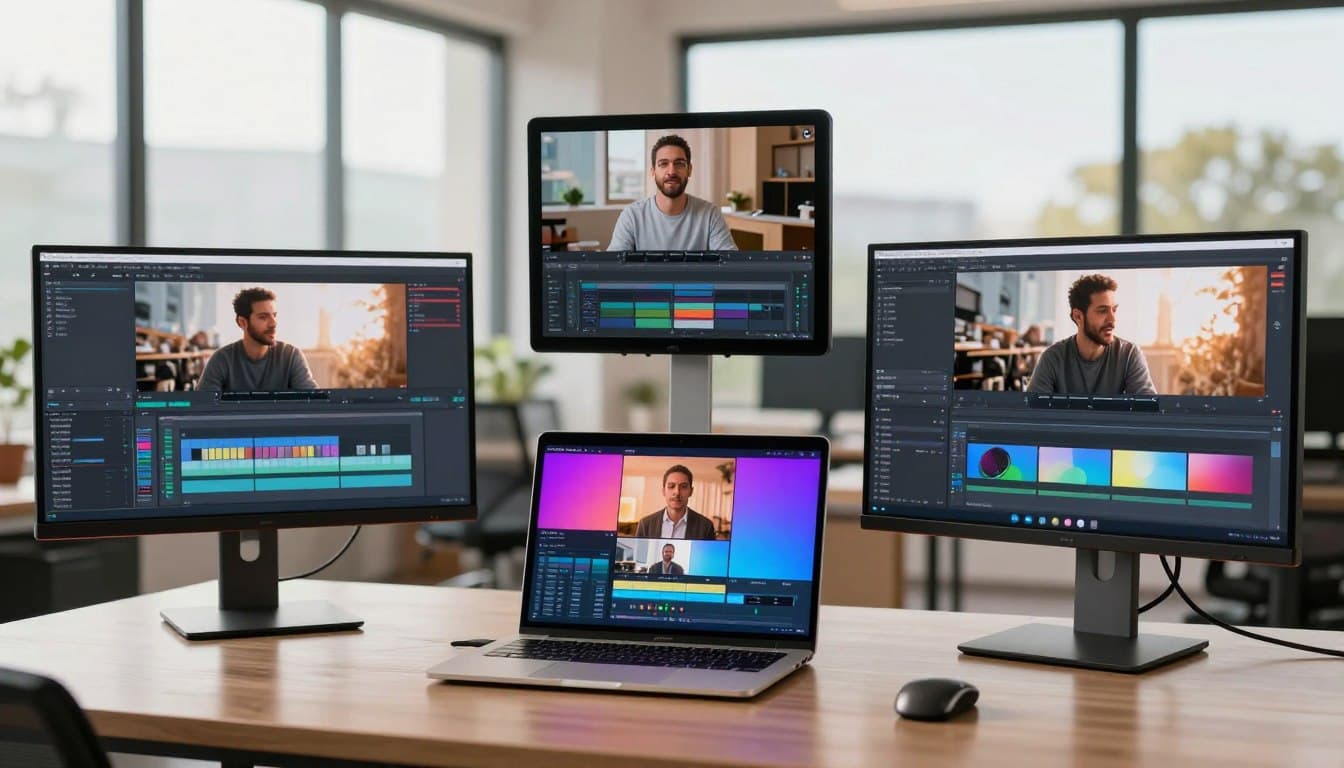
| Frame shape | Common aspect ratio | Typical placement |
|---|---|---|
| Vertical | 9:16 | Short-form videos and Stories (TikTok, Reels, Shorts) |
| Square | 1:1 | Square social-feed posts (Instagram, LinkedIn) |
| Landscape | 16:9 | Standard widescreen video (YouTube, Website embeds) |
A one-click resize can create a useful version for another feed, but review the result instead of assuming every crop works. A person near the edge may move out of view, while a title placed at the top may feel cramped in a shorter frame.
Reposition the subject when the new frame needs it, and check text near every edge. Leave enough visible space around captions and titles so they do not get cut off or covered by the layout of a social app. Keep your brand mark clear without letting it dominate the picture.
If you need to coordinate publication, Adobe Express also includes a Content Scheduler. You can use it to plan and publish videos weeks or months in advance, which helps organize a campaign with several posts.
Before sharing, check the final file and play it back in the frame you intend to use. A last preview can catch an awkward crop or a title that looked fine in the original aspect ratio.
What Should You Check Before Exporting?
Adobe Express supports uploads up to 1GB, so check the source file size before you add it to a project. MP4, MOV, and M4V are supported upload examples, and the size limit applies to an individual uploaded file.
Finished videos can be downloaded as high-resolution MP4 files. Before export, confirm the frame, captions, audio, and full playback so the file is ready for its intended use.
Use this pre-export checklist:
- Confirm the aspect ratio matches the intended destination.
- Keep captions within the visible frame.
- Listen for balanced audio, with speech easy to hear.
- Play the full video through once from beginning to end.
That full playback matters because small issues can hide between scenes. Watch for a title that appears too late, a sound effect that lands early, or a final moment that cuts off abruptly. A clean preview is more useful than checking only the opening.
Think about the source file as well as the MP4 export. If a file is difficult to upload, make a smaller compressed copy that stays within the 1GB limit. Play that copy first to confirm the picture and sound still meet your needs.
A watermark is not added to finished Adobe Express exports on the free plan. The downloaded MP4 is the file to keep or share, while the project remains available for future edits.
Adobe Express automatically saves work, so you can resume a project after closing the tab. Saved work can be picked up later, including when you decide to continue on another device.
Can You Edit Across a Browser and Phone?
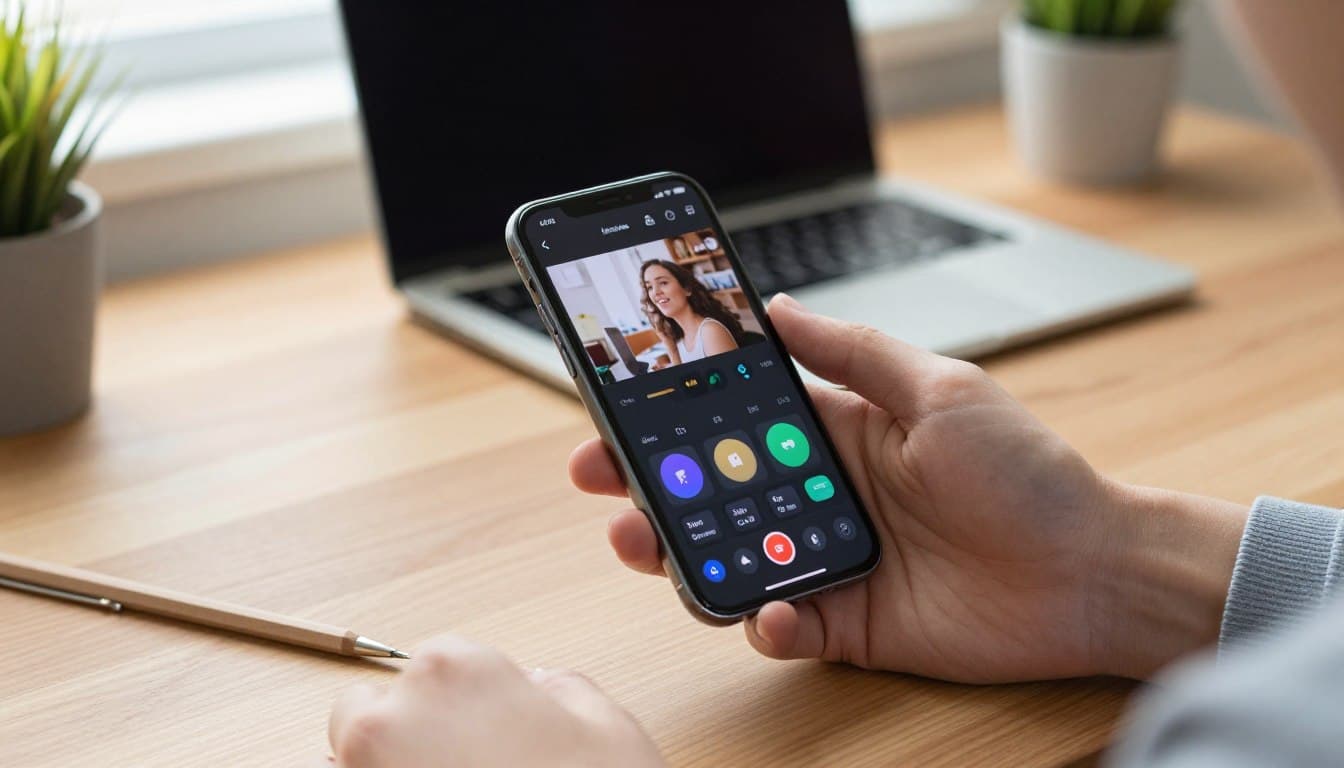
You can make a rough edit on a computer, then check a caption on your phone before sharing. Adobe Express works in current browsers, and projects sync across devices to support that kind of handoff.
Keep your browser up to date for the best editing experience, and use the mobile app when a quick adjustment suits the moment. The browser workspace and app both help you work on a project, but they offer different ways to interact with it.
Your projects sync across devices, so a draft started in a browser can be checked or adjusted on a phone.
Work in a Current Browser
A current browser gives you access to Adobe Express without installing desktop editing software. Keeping it up to date helps provide the best editing experience. The larger screen can make it easier to review several parts of a project and check how the whole sequence reads.
Use the browser when you have time to focus on the full edit, organize a larger set of media, or compare the video with your intended message. A keyboard and wider view can also make detailed adjustments feel more comfortable.
Continue on a Phone When It Suits the Project
The Adobe Express mobile app supports trimming, resizing, captions, speed adjustment, and filters. That makes a phone useful for a quick trim while traveling or a caption adjustment after you notice text sitting too close to the edge.
Project syncing helps you move between those situations without treating each device as a separate project. You might shape the draft in a browser, open the synced project on your phone, and check how a caption looks at a smaller screen size.
Choose the device based on the next task, not a rule that every edit belongs on one screen. A broad review may suit a computer, while a quick check can fit naturally on a phone. The point is to keep the project moving without losing sight of the viewer’s experience.
Pick the device that fits your next edit and take one clear first step, such as opening the project to review a single caption or scene.
Conclusion
Start with a clear purpose for your video, and the editing choices become easier to make. A browser-based video editor can make a simple project approachable, but a clear message matters more than piling on effects.
Adobe Express gives you a place to make that first draft and focus it around one idea. You do not need a complicated production plan to begin; choose a small project that has a useful opening and a clear point.
Open Adobe Express, choose a template or upload a clip, and make one focused edit. You could tighten the opening, clarify a title, or adjust one scene so the main idea stands out.
Then preview your work and decide what the video still needs. A few purposeful changes can make content easier to follow and share. When you are ready, start your first project and see where a simple edit takes you.